
How to Sign In to an Apple ID: Security Questions, Code Link or Email Access
October 16, 2026
BuyAppleIDs Support Desk· Customer support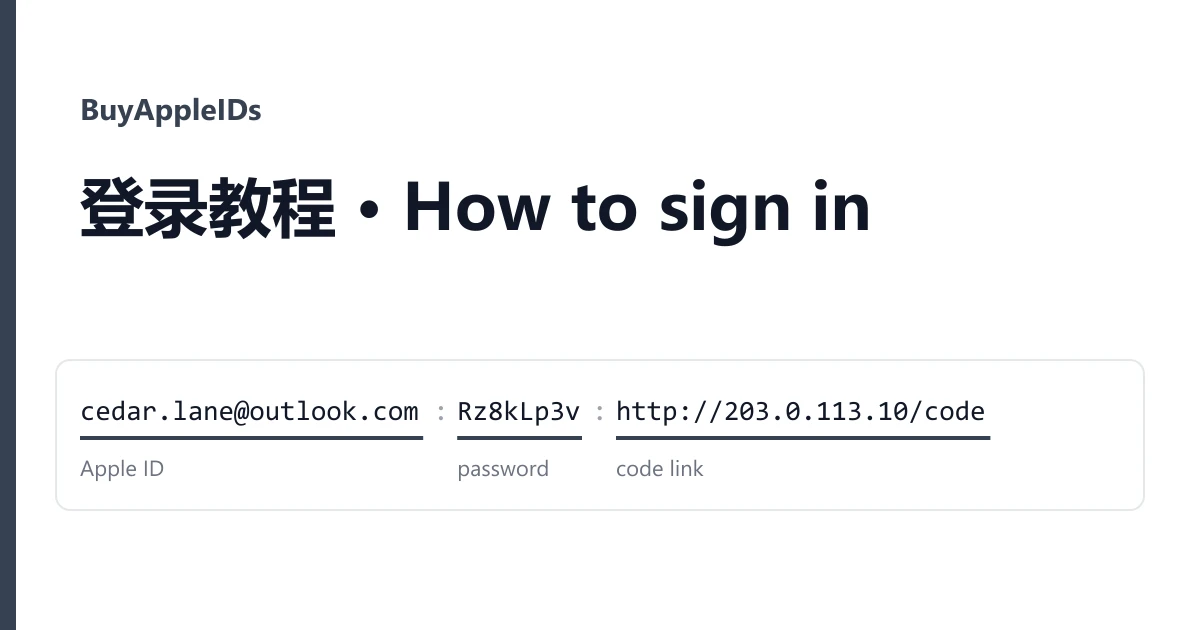
Every Apple ID in your order is one line under Delivered accounts on the order page. Before you sign in, find out which kind you have. Apple's sign-in has two steps, and the second one is different for each kind: three security questions, a code from a link, or an email to the mailbox the Apple ID was registered on. The line tells you which.
Which kind is your line?
| The line contains | Kind | Second step |
|---|---|---|
| Three short answers and a date | Security questions, 2FA off | Apple asks two or three of the questions; type the matching answers |
A web link starting with http | 2FA with a code link | Apple asks for a 6-digit code; open the link to read it |
| A second password for the email address | Email access | Apple may email a code or a reset link; read it in that mailbox |
The separator changes between listings: |, ---- or a comma. Read the fields by what they look like. The Apple ID itself is always the email address at the start of the line.
Security-question Apple IDs
These listings print their field order in the title, and it is one of two (values invented):
maple.rowe@icloud.com|Kt7vPx2q|Blue|Denver|Rocky|05/14/1993
Apple ID | password | answer 1 | answer 2 | answer 3 | birthday

maple.rowe@icloud.com|Kt7vPx2q|05/14/1993|Blue|Denver|Rocky
Apple ID | password | birthday | answer 1 | answer 2 | answer 3
The answers are in the order of the questions as Apple lists them in the account. When Apple shows a question, the answer that goes with it is the one in the same position. If Apple asks for the birthday (for example to reset something), type the date from the line in the format the page shows.
2FA Apple IDs with a code link
cedar.lane@outlook.com|Tq5831#@v|http://203.0.113.10:8080/api/code?id=1234|abcd-efgh-ijkl-mnop
Apple ID | password | code link | 16 letters in four groups

cedar.lane@outlook.com----Rz8kLp3v----http://203.0.113.10:8080/code?id=5678
Apple ID ---- password ---- code link- Sign in with the Apple ID and the password.
- When Apple asks for a verification code, open the code link in a browser. It shows the latest code sent to the account. If it shows an old one, wait a few seconds and reload.
- Type the 6 digits. Codes expire quickly, so read and type them in one go.
Some lines end with 16 lowercase letters in four groups, as in the first example. That is the shape Apple uses for app-specific passwords, which work in mail and other apps but not on the Apple ID sign-in page. The listing description says what that field is; if it does not, ask from a ticket before you rely on it.
Keep the code link. Every future sign-in on a new device asks for a code again, and until you add your own trusted phone number (below) the link is the only way to get one.
Apple IDs with email access
Here the line holds the Apple ID, its password and the password of the mailbox the Apple ID uses. Sign in to the mailbox first, in its own web page, and keep that tab open. If Apple sends a code or a link during the Apple ID sign-in, it arrives there.
Where to sign in: App Store only, or iCloud
Read the listing before you choose the place.
- Listings that say App Store only (iCloud cannot be used): on an iPhone or iPad, sign in only in the App Store, under your profile picture, or under Settings, Media and Purchases. Do not sign in at the top of Settings, where iCloud lives. Shared US App Store accounts with a short usage window work the same way: sign in, download what you need, sign out, and change nothing.
- Security-question and email-access listings with iCloud activated: you can sign in at the top of Settings and use iCloud with the free 5 GB, or on the web at appleid.apple.com and icloud.com.
Whatever the listing, sign in once soon after delivery, within the warranty window printed on it, to confirm the account works.
Make it yours: password, questions, trusted number
Do this only on accounts you are keeping for yourself, not on shared App Store accounts. Change one thing, sign out and in again, then change the next. On appleid.apple.com, under Sign-In and Security:
- Password. Set a new one and save it with the rest of the line.
- Security questions (question listings). Apple asks for the current answers first, then lets you pick new questions. Write the new answers down at the same moment.
- Mailbox (email-access listings). Change the mailbox password too, in the mailbox itself, so Apple's emails reach only you.
- Trusted phone number (2FA listings). Under Two-Factor Authentication, add your own number, confirm it with the code Apple sends to it, then remove the number that was there. From then on codes come to you, and the code link stops mattering.
On a question account, turning on two-factor authentication with your own number is the strongest lock, but Apple usually does not let you turn it off again. Decide before you switch it on.
When something goes wrong
"Incorrect Apple ID or password"
Copy the password again on its own. Lines separated by ---- make it easy to pick up a dash, and comma lines a stray comma.
The code link shows nothing new
Ask Apple to send the code again, wait a few seconds, reload the link. If it still shows no code, report it with a screenshot of both pages.
"This Apple ID has been locked for security reasons"
Do not try the unlock flow repeatedly. Take a screenshot and open a ticket.
Open the ticket from the order page within the warranty window, say which line failed and attach a screenshot. The account is replaced from the same listing, or refunded if the listing has sold out. Signing in does not void the warranty; bans caused by bulk or automated activity are outside it. The kinds on offer are compared on the home page and listed in the catalogue.